How-to
How to Turn Your Google Maps Saved Places into a Real Trip Itinerary
Updated September 2026 · 6 min read
Quick answer
Google Maps can't turn saved places into a schedule, but the list's share link carries everything a planner needs:
- In Google Maps, open the saved list and tap Share, then Copy link.
- Paste the link into the box below (or on the Google Maps list to itinerary tool). It works in your browser, no download, and your first list is free with no account.
- Tap Build a trip. Every place gets a photo and exact coordinates and is grouped into walkable days. Sign up (free) to keep it and open it in the app.
Prefer to hand-pick, or have hundreds of pins across many countries? Methods 2 and 3 below cover that.
Most people plan trips in Google Maps without meaning to. A restaurant from a Reddit thread, a hiking trail a friend swears by, four things from a "10 things to do in Kyoto" article. You hit Save, forget about it, and repeat that for two years. Then an actual trip lands on the calendar, you open your list, and what you have is 43 pins in no order, spread across three countries, half of them saved for reasons you no longer remember.
Google Maps is good at exactly one part of this: knowing where everything is. It was built for navigation, and it shows. There is no way inside the app to turn saved places into a day-by-day plan, and there never has been.
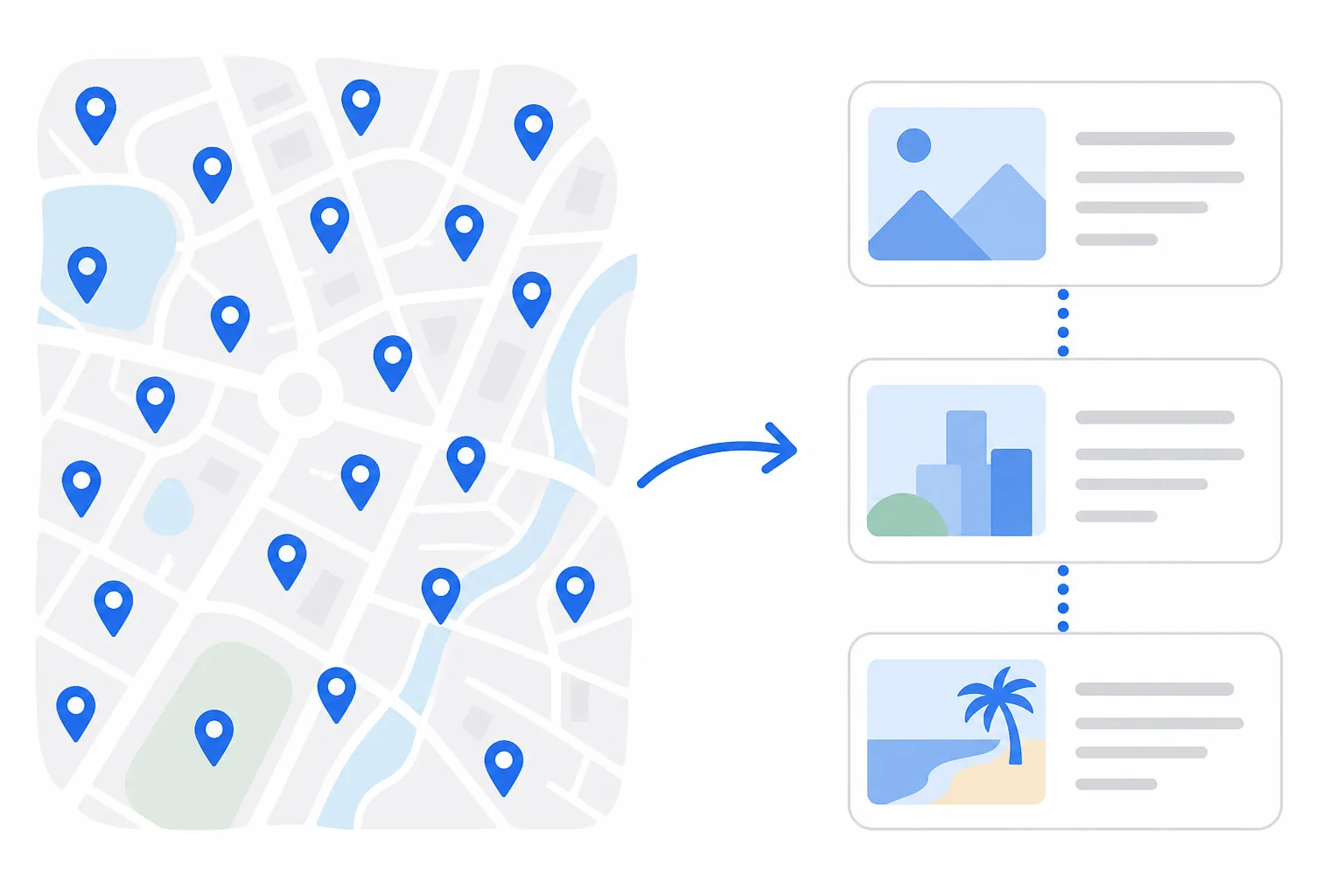
What Google Maps won't do for you
The lists themselves are fine. "Want to go," Favorites, custom lists per city: all genuinely useful for collecting. The wall you hit is planning. There is no day-by-day scheduling, no route ordering across days, no trip dates, and no way to hand a finished schedule to the people traveling with you. You can stare at your pins on the map, but the map will not tell you which ten of them make a good Tuesday.
Google knows this. Google Trips did some of it and was shut down in 2019, and nothing replaced it. So the conversion step, pins into plan, has to happen somewhere else.
Method 1: Paste your whole saved list into Triply
This is the one that ends the problem. Triply reads Google Maps share links, and not just single places: share a whole saved listand it reads the entire thing. The list name, every place in it, and even the notes whoever built the list wrote on each save. Paste a "Seattle" list with 74 pins and the assistant sees all 74, including the note about which dive bar Nirvana played before anyone knew them.
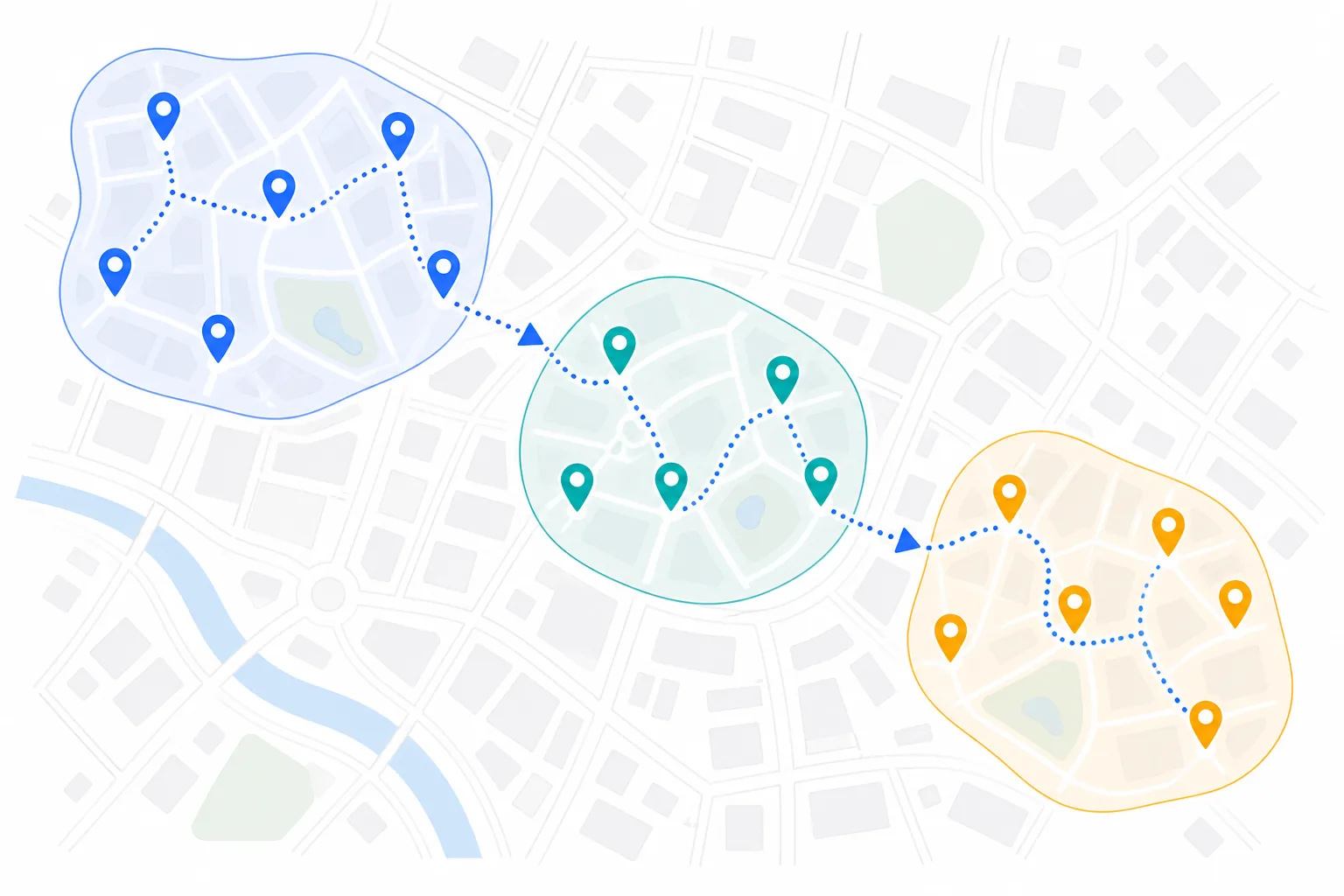
Then it sorts your pins by geography into walkable days and hands you the trip on a map, with photos and exact coordinates for every place. Untick anything you don't want first. Two years of collecting pins, converted in one paste and one tap. Once it's yours, Triply AI (part of Pro) can reshuffle it by chat: "just the food spots", "what fits on a Saturday, walking only?"
Single-place links work the same way, which makes this the answer for the link someone just dropped in the group chat. You never search for anything or retype a name; the link is enough.
Two honest notes. The list has to be shared with a link; a list that has never been shared has no link to read. And each place gets verified against a real photo and location before it lands in your library, so the rare one that can't be verified is left off the trip and named, not quietly guessed at. Reading a list and building the trip is free; your first list needs no account at all.

Method 2: Rebuild your shortlist inside Triply
For a whole trip, do it by search. Open your Google Maps list on one half of the screen and Triplyon the other, and look up each place by name. Each one resolves to the real location with a photo, a category, and coordinates, and goes into a list or straight into the trip you're building. Then set your dates and let the AI order everything into days.
Before you groan about typing ten names: a 40-pin list is a wishlist, not a trip. When people actually build the schedule, about ten places survive. Moving ten places takes a few minutes, and the sorting you do on the way is the part of planning worth doing by hand, because it's the part where you decide what the trip is about.
Method 3: Google Takeout, for the pin hoarders
If you have hundreds of saves across many destinations, export first and filter second. Google Takeout gives you each list as a CSV (our export guide walks through it), and Google My Maps can display the result in layers so you can see what you actually have per city. Neither of them plans anything; they just get your data somewhere you can triage it. Once you know which places matter for this trip, bring those into Triply the same way as Method 2.
For most people this is overkill. Do it if your saved places have become a small database; skip it if they fit on one screen.
The part that changes the trip: route order
The real cost of planning from a raw list is geography. A restaurant in the north of the city, a museum in the south, a viewpoint back up north. Visit them in that order and you've spent your afternoon on public transport. Do that every day and the trip is mostly commuting with sightseeing breaks.
This is the step Triply automates. Nearby places get grouped into the same day, and each day gets a visiting order that flows instead of zigzagging. It sounds minor until you compare the same ten pins as a raw list and as a routed schedule; the second one is the difference between a plan you follow and a plan you abandon by lunch. If you want to see how the AI planners compare on this, our rundown of AI trip planners covers it in more depth.
Doesn't Google Maps have trip features now?
Sort of. You can add stops to a driving route, and the Explore tab suggests things nearby. Both answer "how do I get there," not "what should Wednesday look like." They're navigation features wearing a planning hat. The full Triply vs Google Maps comparison goes through this feature by feature.
Habits that make this easier next time
- Save into a named list per destination ("Lisbon2026"), not the general pile. Future you will only have to sort one city instead of all of them. Our guide to organizing places in Google Mapscovers the list system, including the hidden "Travelled" list.
- Write a note when you save. "Best for lunch," "needs a reservation," "closed Mondays." Six months later the note is the only part you'll remember.
- Decide must-do vs. nice-to-have before you build days. Five to seven places per day is a trip; twelve is a checklist sprint.
- Mix your sources. Maps pins, Instagram saves and TikTok finds can all land in the same Triply trip, and the planner treats them the same.
From saved to scheduled
The shift worth making is mental: saved places are raw material, not a plan. A wall of pins is what you might do someday; a routed schedule with dates is what you will do next month.
Triply handles the conversion and keeps working after you land. Sights on your itinerary show verified ticket links, meaning actual Tiqets, GetYourGuide, and Viator products checked for that specific spot rather than a blind search link, and a companion mode shows today's plan and what's nearby while you're out. The app is free on iOS and Android, the free tier includes monthly credits, and Pro has a 7-day trial. Try it on the places you've been saving for months.
Frequently asked questions
Can Google Maps create an itinerary from my saved places?
No. Google Maps saves and organizes places into lists, but it has no day-by-day scheduling, no route ordering across days, and no way to turn a list into a sequenced plan. Google Trips, which did some of this, was shut down in 2019. The conversion step needs a trip-planning app like Triply.
Can I paste a Google Maps link into Triply?
Yes, both kinds. Paste a place link or a shared list link at app.triplyplanner.com/import and Triply reads it in your browser: every place plus the notes written on each save, matched to a real location with a photo and coordinates, grouped into a day-by-day trip. The first list is free with no account; a free account keeps the trip and opens it in the app. In the app, Triply AI (part of Pro, 7-day trial) reads the same links inside a chat.
How do I export my Google Maps saved places?
Through Google Takeout (takeout.google.com): select "Saved" and "Maps (your places)," and each list downloads as a CSV file. For trip planning the full export is usually more than you need; our export guidecovers when it's actually worth doing.
How many saved places should I plan per day?
Five to seven works for most people. Beyond that the day turns into a checklist sprint, and the schedule holds up better when nearby places share a day, which is exactly what route ordering does.