How-to
How to Share a Google Maps List with Friends (and Plan the Trip Together)
October 2026 · 7 min read
Quick answer
- In Google Maps, open the You tab (called Saved on older versions) and open the list.
- Tap Share to send a view-only link, or Invite collaborators so friends can add places too.
- When the group has added everything, copy the list link and paste it below. Triply reads every place and note and groups them into walkable days. Share the finished trip back with one link.
Group trips start the same way every time. Someone makes a Google Maps list, drops the link in the chat, and for two weeks everyone adds things. A rooftop bar from a Reel. The ramen place a colleague mentioned. Three museums, two beaches, a bakery that is apparently life-changing. By the time the flights are booked the list has 38 pins and nobody has looked at it as a whole.
Sharing the list is the easy part, and this guide covers it in a minute. The hard part is what comes after: turning a shared pile of pins into a plan five people will follow. That is where Google Maps stops, so the second half of the guide covers the step it skips.
Step 1: Make the list shareable
Google Maps lists come in two types. A Private list is only visible to you. A Shared list can be opened by anyone who has the link. When you create a list you pick the type, and you can change it later, so a private list you started months ago can become the group list today.
- Open Google Maps and tap the You tab at the bottom. On older app versions this is the Saved tab.
- Open the list you want to share, or tap New list, give it a name ("Lisbon, May" beats "Trip") and choose Shared.
- Tap Share. Google Maps opens the normal share sheet, so you can send the link to WhatsApp, iMessage, email or just copy it.
Anyone who opens that link can see the list and tap Save listto keep it in their own Google Maps under "Lists you saved". They do not need to be your contact, and they do not need an invite, which is why it works in a group chat where you don't have everyone's email.
Step 2: Let friends add places (collaborator editing)
A view-only link is fine for "here is what I found". For a real group trip you want everyone adding to the same list instead of sending screenshots. Google Maps supports this with collaborators:
- Open the list and tap Share, then choose Invite collaborators. On some versions the path is More (the three dots next to the list) → Sharing options → Invite editors.
- Send the edit link to the group. Everyone who opens it while signed in to Google can add places, remove their own, and write notes on each save.
- Everyone on the list can see who added what, with names and profile pictures, so "who put a 4-hour hike on day one?" has an answer.
To stop editing later, for example once the trip is set, go back to Sharing options and turn off Let others edit this list. The list stays viewable by link; it just freezes.
Two practical tips. Ask people to write a one-line note on every save ("dinner, needs booking", "only if raining"). Six weeks later the note is the only thing that explains why the pin is there, and a planner can read those notes. And keep one list per destination; a shared "Europe" list with Porto and Prague in it is impossible to plan from.
Step 3: The part Google Maps skips, turning the list into a plan
Here is the wall every group hits. The shared list is complete, and it is still just dots on a map. Google Maps has no trip dates, no "day 1, day 2", no way to say which ten of the 38 pins fit together on a Tuesday, and no route that visits them in a sensible order. Google Trips did some of this and was shut down in 2019. The planning step has to happen somewhere else, and the good news is that the list link you already have carries everything a planner needs.
- In Google Maps, open the shared list, tap Share and copy the link (the view link is enough).
- Paste it into the box below, or on the Google Maps list to itinerary tool. It runs in your browser, no download, and the first list is free with no account.
- Triply reads the whole list: every place, plus the notes each friend wrote. Each place is matched to a real location with a photo and exact coordinates. Untick anything the group has outgrown.
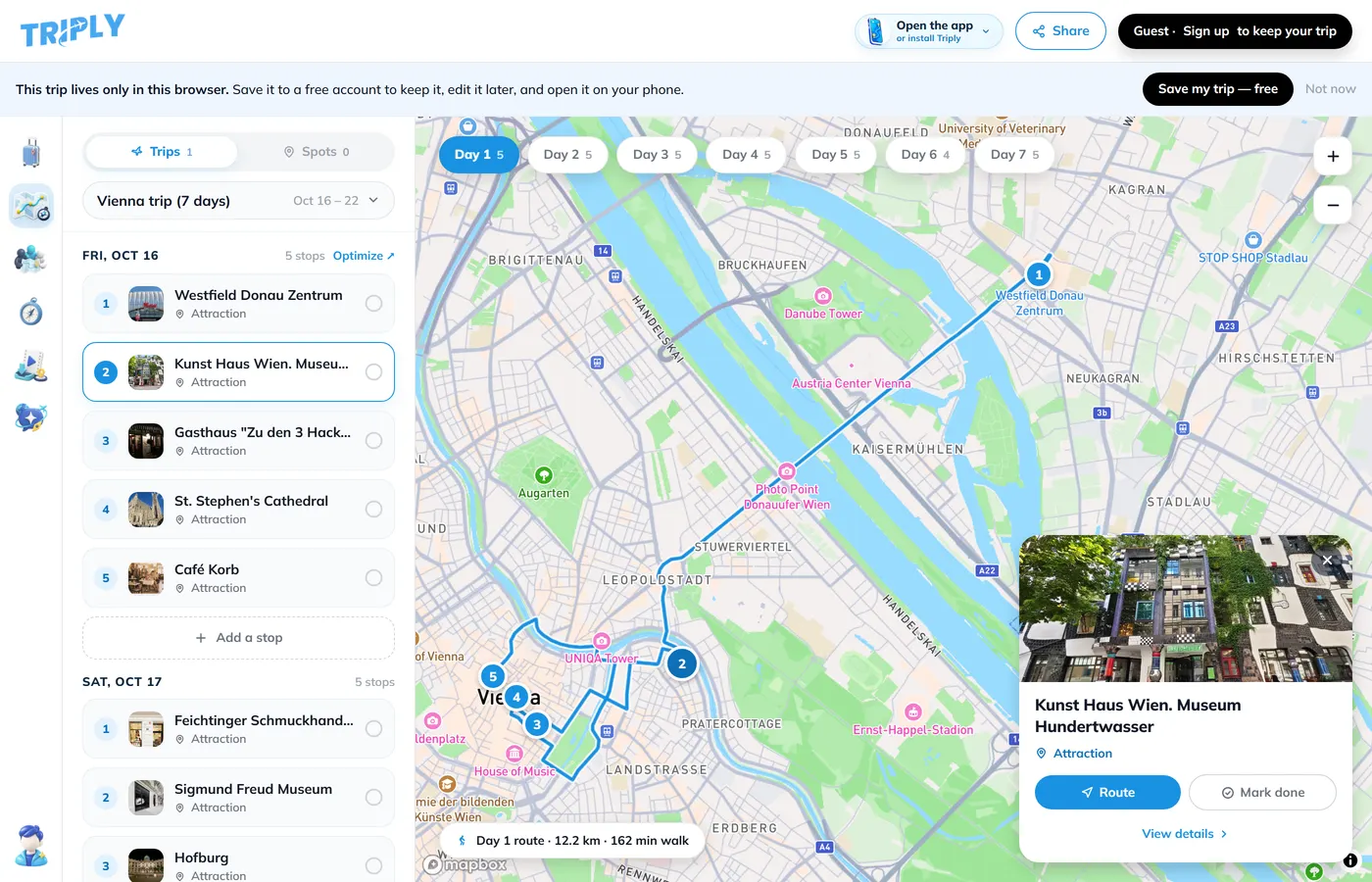
- Tap Build a trip. Nearby places are grouped into the same day and each day gets a walking order, so the museum in the north and the bar in the south stop being a 40-minute detour.
Our full guide to turning Google Maps saved places into an itinerarygoes deeper on the by-hand options. For a group, the paste is the one to use, because it keeps everyone's additions and notes without anyone retyping a thing.
Step 4: Share the plan back (and keep it in sync)
A plan nobody can open is a plan nobody follows. Once the trip exists in Triply, it has a share link that opens in any browser or in the app, showing the days, the places with photos, and the route for each day. Send that link to the same chat where the Google Maps list lived. People who install the app see the same trip, and the companion mode shows today's plan and what is nearby while you are out.
When the plan changes, and it will, change it in one place. Drag a place to another day, drop the second museum, add the bakery someone found on the flight. The link stays the same. With Triply AI (part of Pro, 7-day trial) you can also reshuffle the trip by chat: "move the food spots to day two", "what fits on Saturday morning, walking only?"
Common problems with shared lists
"The link opens but there is no Share button"
Some lists cannot be shared directly, for example a list you saved from someone else. Create a new list of your own, add the places to it, and share that one.
"My friend can see the list but can't add anything"
They opened the view link, not the edit link, or editing was turned off. Check Sharing options and send the edit link again. They also need to be signed in to a Google account to edit.
"We have 60 pins and no idea what to cut"
Decide must-do versus nice-to-have before you build days. A realistic day holds five to seven places. The planner will group what you keep; it cannot decide for the group what the trip is about. If the pile has grown for years, our export guide shows how to get everything out of Google Maps and triage it first.
What a shared list is good for, and what it isn't
Shared lists are the best collecting tool there is. Everyone can add from their phone, places are real Google listings with hours and reviews, and the list follows you into navigation when you are there. Use it for that, and keep using it after the trip is planned, because the next trip starts the same way.
Just don't expect it to become the plan. Collecting and scheduling are different jobs. Google Maps does the first one well, Triply does the second, and the share link is the bridge between them. The app is free on iOS and Android, the free tier includes monthly credits, and the Google Maps paste works in your browser without an account for the first list.
Frequently asked questions
Can my friends add places to my Google Maps list?
Yes. Open the list, tap Share, then Invite collaborators (or More, then Sharing options, then Invite editors). People who open the edit link can add places and notes. You can turn editing off later under Sharing options with Let others edit this list.
Do my friends need a Google account to see a shared list?
To view a list shared by link, no account is needed. To add places or save the list to their own Google Maps, they need to be signed in to a Google account.
Can Google Maps turn a shared list into a day-by-day itinerary?
No. A shared list is a shared pile of pins. Google Maps has no trip dates, no day-by-day scheduling and no route ordering across days. To plan, paste the list's share link into a planner such as Triply, which groups the places into walkable days you can share back.
What is the difference between a Shared list and a Private list?
A Private list is visible only to you. A Shared list can be opened by anyone with the link, and you choose whether they can only view it or also edit it. You can change a list between the two at any time.
Can I share the finished trip plan with the group?
Yes. In Triply every trip has a share link that opens on any phone or in a browser, with the days, the places and the walking route. Friends can also open the same trip in the app and use the companion mode while you are out.