How-to
Google Maps "Want to Go" List Too Long? How to Turn It into a Day-by-Day Plan
October 2026 · 6 min read
Quick answer
- In Google Maps, open You (or Saved) → Want to go, tap Share and copy the link.
- Paste the link into the box below. Triply reads every pin and note, and you untick the ones that are not for this trip.
- Tap Build a trip: the places you kept are grouped into walkable days with a route. Free in your browser, no account for the first list.
"Want to go" is the default Google Maps list, which is why it ends up holding everything. A bar in Mexico City from 2023. A hike someone mentioned at a wedding. Four bakeries in Copenhagen. Nineteen things in Tokyo from one night of scrolling. It grows for years, and then you book a trip, open the list to plan, and find 80 pins across six countries in the order you saved them.
The list is not broken. It is doing exactly what it is for: collecting. The problem is that Google Maps offers no way to go from "collected" to "scheduled". No filter by city, no trip dates, no day one and day two. This guide is the path from the long list to a plan you can actually walk.

Why the list feels unusable
Three things are missing, and none of them is coming to Google Maps. There is no way to sort or filter the list by location, so Tokyo pins sit between Lisbon pins. There is no concept of a trip, so the app cannot know that this week you only care about one city. And there is no scheduling: a list has no days, and the map will not tell you which ten of the pins make a sensible Tuesday. Google Trips used to do a version of this and was shut down in 2019.
What Google Maps does give you is the raw material in good shape. Every pin is a real listing with coordinates, hours and reviews, and the note you wrote on the save (if you wrote one) travels with it. That is enough for a planner to work with, which is the whole trick below.
Step 1: Pull one trip out of the pile
Do not try to plan from the full list. Decide where you are going, then get only those pins in front of you. Two ways:
- Inside Google Maps:create a new list named after the destination ("Kyoto, April"), open Want to go, and move or re-save the relevant pins into it. Slow for a big list, but you end up with a clean per-city list you can reuse. Our guide to the Want to go list covers the list types and the habits that stop this happening again.
- Skip the sorting: share the whole Want to go list into Triply and untick what is not for this trip. Pins are shown with their city, so dropping the Mexico City bar from a Kyoto trip is one tap. For a list with hundreds of pins this is the faster route.
Step 2: Cut it down to what fits
A 40-pin city list is a wishlist, not a trip. When people actually build a schedule, about ten places per three days survive. Before you build days, mark each pin as must-do or nice-to-have. The must-dos set the shape of the trip; the nice-to-haves fill gaps when you are already nearby.
Read your own notes while you do this. "Best for lunch", "closed Mondays", "needs a reservation" are the only memory you have of why the pin exists, and they decide which day it can go on. If you never wrote notes, start now; this is the step where you wish you had.
Step 3: Paste the list and let the days build themselves
- In Google Maps, open the list, tap Share and copy the link. If a list has no Share option (for example one you saved from someone else), re-save the places into a list of your own and share that.
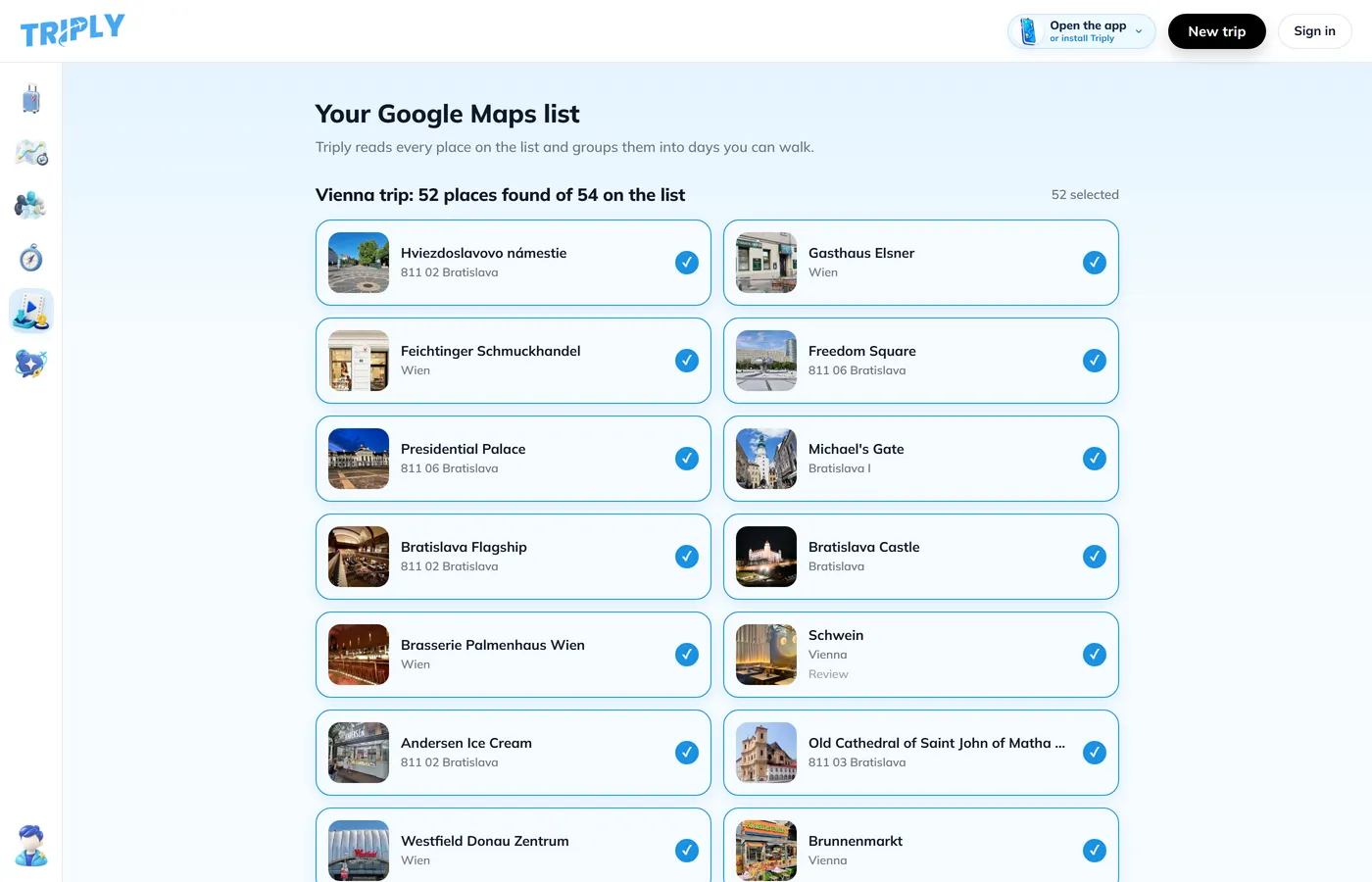
- Paste the link into the box below or on the Google Maps list to itinerary tool. It runs in your browser and reads the whole list, including the notes.
- Each place is matched to a real location with a photo and exact coordinates. Untick the ones you are leaving out.
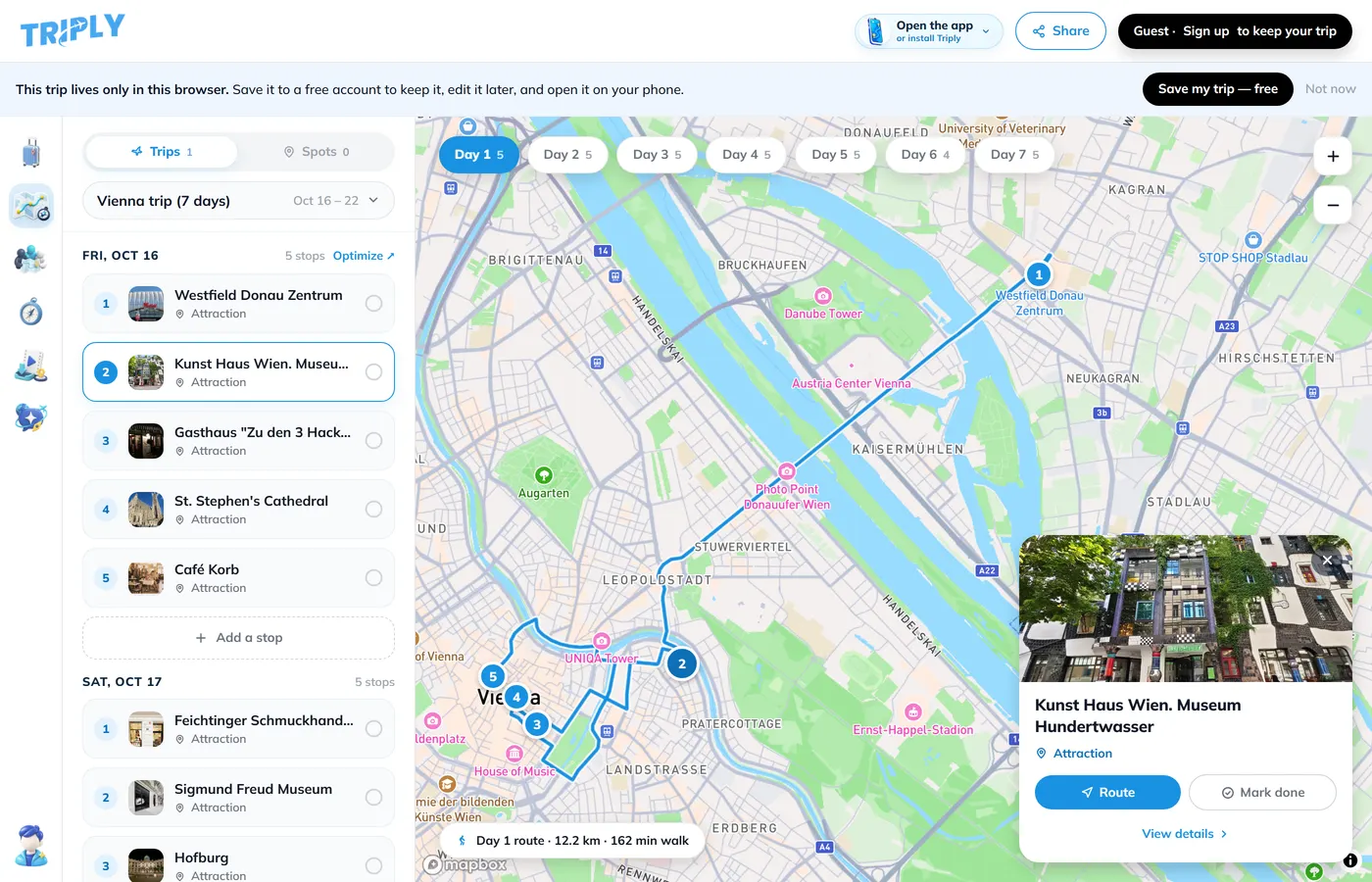
- Tap Build a trip. Nearby places are grouped into the same day and each day gets a walking order, so you are not crossing the city three times before lunch.
The first list is free with no account. A free account keeps the trip and opens it on your phone. The longer version of this workflow, including the by-hand and Takeout options, is in our guide to turning Google Maps saved places into an itinerary.
Step 4: Fix what the first pass got wrong
Automatic grouping is a strong first draft, not a final answer. Look at each day and ask two questions: does it start and end somewhere sensible (near where you sleep), and is there one anchor per day (the museum with timed tickets, the restaurant with a booking)? Drag places between days until both are true. With Triply AI (part of Pro, 7-day trial) you can also do this by chat: "put the food places on the last day", "what fits on a rainy afternoon?"
Then stop. A plan with five to seven places per day and some slack is one you will follow. A plan with twelve is one you will abandon by lunch and go back to scrolling the list.
Keep the list from exploding again
- Save into a named list per destination instead of Want to go. Want to go stays for things with no trip attached.
- Write a note on every save. Even two words.
- Once a trip is planned, move its pins out of Want to go or archive the list. The list should hold what is still open, not what you already did.
- Mix sources. Pins from Maps, saves from Instagram and TikTok can all land in the same Triply trip, so you do not need to copy everything into Google Maps first.
If the list has really become a database
Several hundred pins across years and continents? Export first, triage second. Google Takeout gives you each list as a spreadsheet, and our export guide walks through the clicks. For most people this is overkill: if the list fits on a few screens, the paste above is faster than any spreadsheet.
Frequently asked questions
Is there a limit on the Google Maps Want to go list?
Google does not publish a hard cap for Want to go, and lists with hundreds of places work. The practical limit is you: past a few dozen pins the list stops being useful for planning, because there is no way to filter it by city or sort it into days.
Can I sort my Want to go list by city or country?
Not inside Google Maps. The list shows pins in the order you saved them, with no filter by place. The workaround is to create one list per destination and move the pins over, or to paste the list into a planner that groups places by location for you.
How do I turn my Want to go list into an itinerary?
Open the list in Google Maps, tap Share and copy the link, then paste it into Triply's Google Maps list to itinerary tool. It reads every place and note, matches each one to a real location with a photo, and groups them into walkable days. The first list is free with no account.
Can I share my Want to go list?
Yes, as long as the list type is Shared rather than Private. Open the list, tap Share, and send the link. You can also invite collaborators so friends can add places.
How many places from my list should go into one day?
Five to seven is realistic for most trips. More than that and the day becomes a checklist sprint. Grouping nearby places into the same day is what makes a schedule hold up.