How-to
How to Transfer Google Maps Saved Places to Another Account
November 2026 · 6 min read
Quick answer
Google Maps has no transfer button and cannot import saved places. What works:
- Share the list from the old account, open the link in the new account and tap Save list. Fast, but the list still belongs to the old account.
- Re-save the places into a list the new account owns. Slower, and the only way to really move them.
- Export with Google Takeout to keep a backup file of every list.
Moving the places because of a trip? Skip the transfer: paste the list's share link here and plan from it directly.
Works in your browser, no download. Your first list is free, no account needed.
People end up with saved places in the wrong account for ordinary reasons: a work or school account that is about to close, an old Gmail address you want to retire, or years of pins saved while signed in to the wrong profile. If you are only changing phones, you do not need any of this. Saved places are stored in your Google account, so signing in to the same account on the new phone brings them back.
For a real account change, pick the method by how much you need to own the result.
Method 1: Share the list to your new account
This takes a minute per list and is enough if the old account is staying open.
- Signed in to the old account, open Google Maps, tap You and open the list.
- Tap Share and copy the link. A Private list has to be changed to Shared before it has a link. To let the new account add and remove places, choose Invite collaborators instead.
- Switch to the new account: tap your profile picture at the top right of Google Maps and pick the other account.
- Open the link and tap Save list. A collaborator link, opened while signed in to the new account, adds it as an editor.
The list now shows up in the new account. The catch is ownership: it still belongs to the old account, and the new account is a viewer or an editor. So do not delete the old account, or the list, until you have done Method 2 for the places you care about.
Method 2: Re-save the places into a list you own
This is the actual move. It is manual, so do it for the lists that matter and leave the rest behind.
- Do Method 1 so the old list is visible in the new account.
- In the new account, create a list: You, then New list.
- Open the shared list, open a place, tap Save and tick your new list.
- Repeat for each place. On a computer this goes faster, because the list stays open in the side panel while you click through it.
Notes you wrote on the old saves belong to the old list. Copy the ones you need into the note field when you save the place again.
Method 3: Export with Google Takeout
Takeout does not move anything into the new account, but it gives you a copy that does not depend on either account, which is what you want before closing one.
- Signed in to the old account, go to takeout.google.com and click Deselect all.
- Tick Saved (your lists) and Maps (your places) (starred places).
- Create the export and download the archive from the link Google emails you.
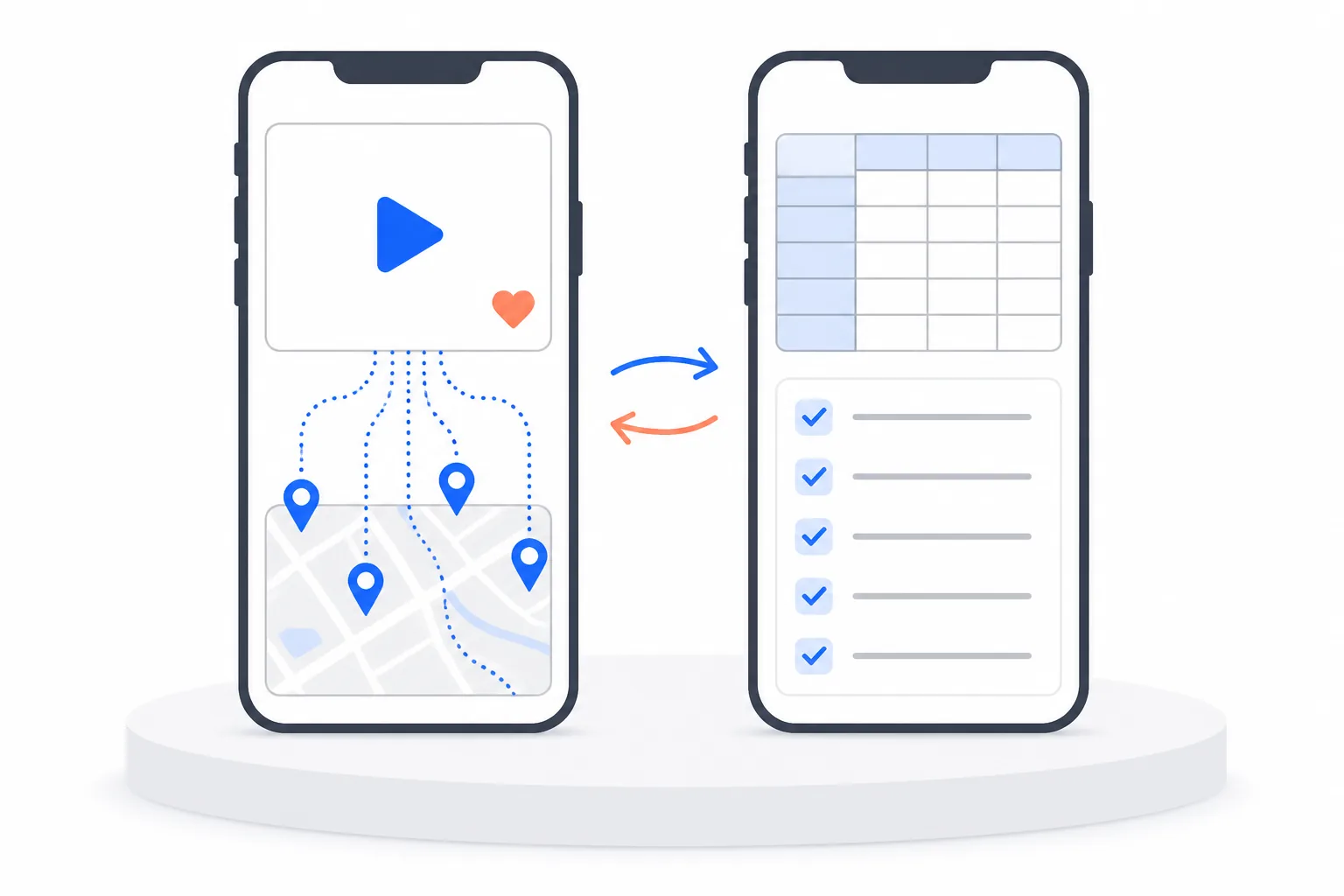
Each list arrives as a CSV file with the place name, your note and a Google Maps link for every row. Google Maps cannot import that file back into saved lists. What you can do is open the links while signed in to the new account and tap Save on each one. Our guides cover the export step by step and what each file in the archive holds. If the old account is a work or school account, your administrator may have turned Takeout off; in that case Methods 1 and 2 are what is left.
Starred places and labels
Starred places cannot be shared by link, so Method 1 skips them. Put them into a normal list first. On Android you can do several at once: tap You, then See all, touch and hold a place, tick the others, tap Save and choose New list. Then share that list. Private labels such as Home and Work are quick to set again by hand in the new account.
If the goal is a trip, you can skip the transfer
A lot of account moves start with a trip: the Lisbon list is in the old account and you are planning from the new one. For that you do not need the places inside Google Maps again. You need them in a plan.
- In the old account, open the list, tap Share and copy the link.
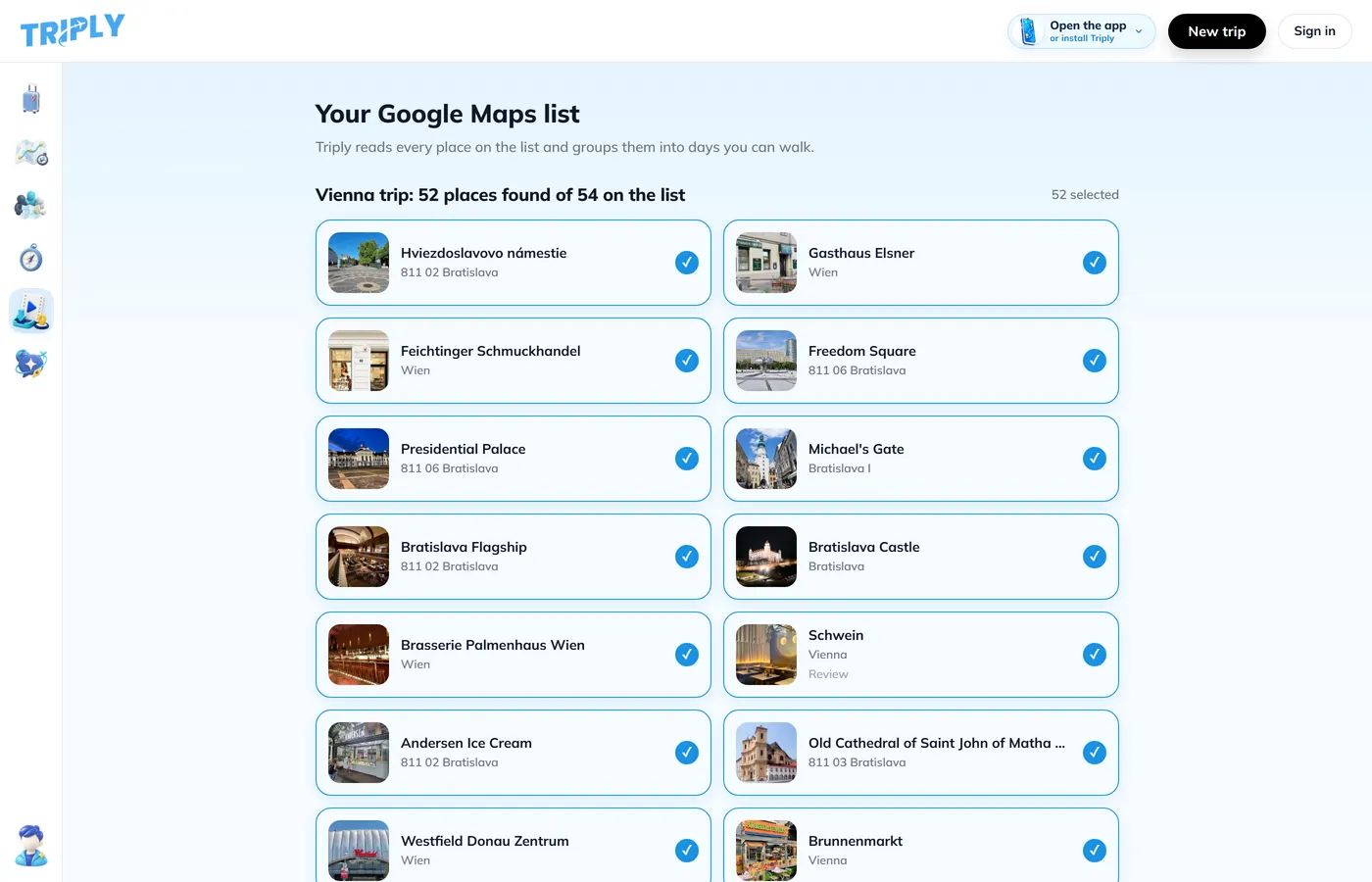
- Paste it into the box above, or on the Google Maps list to itinerary tool.
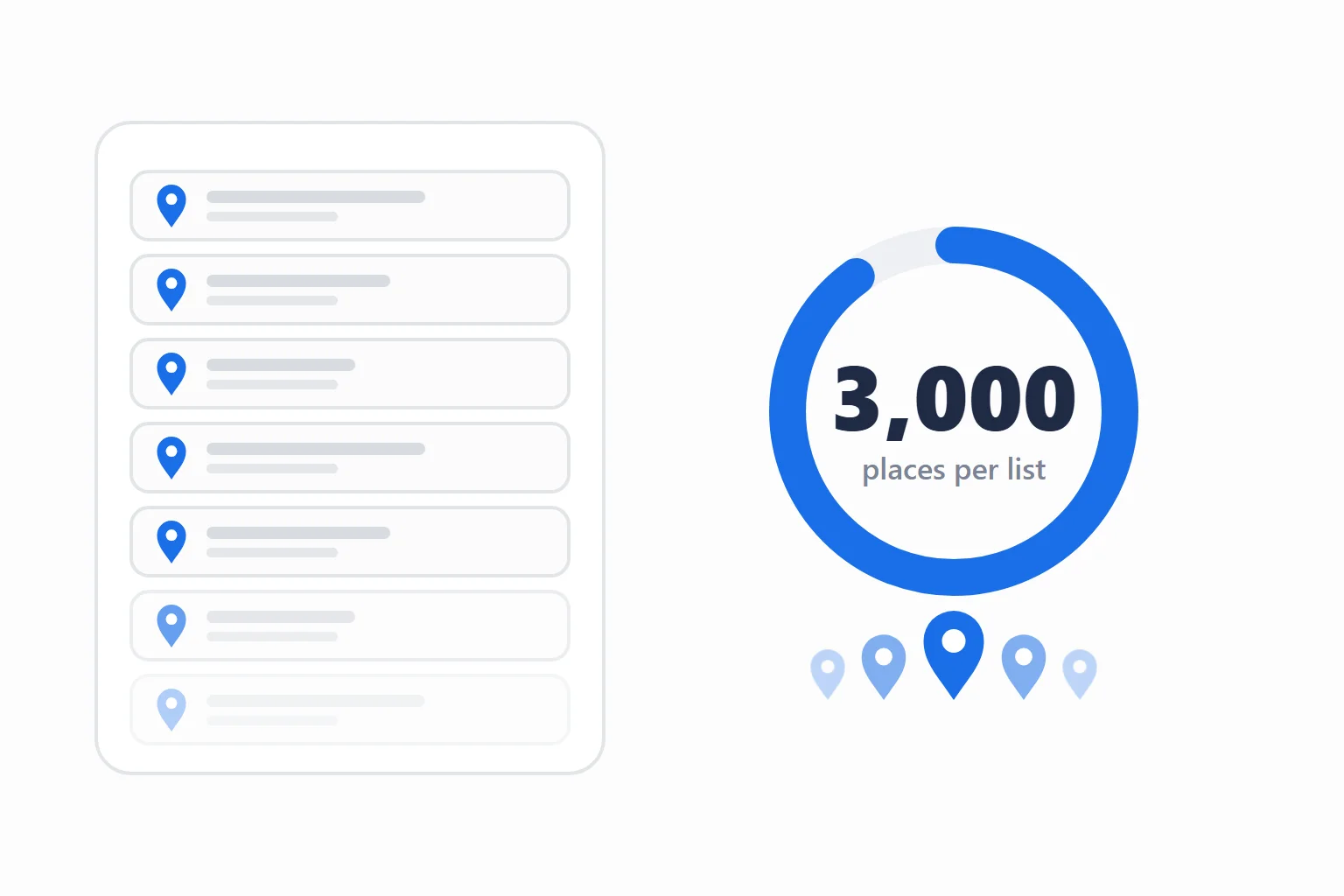
- Triply reads up to 60 places from the link, with your notes, and matches each to the real place with a photo.
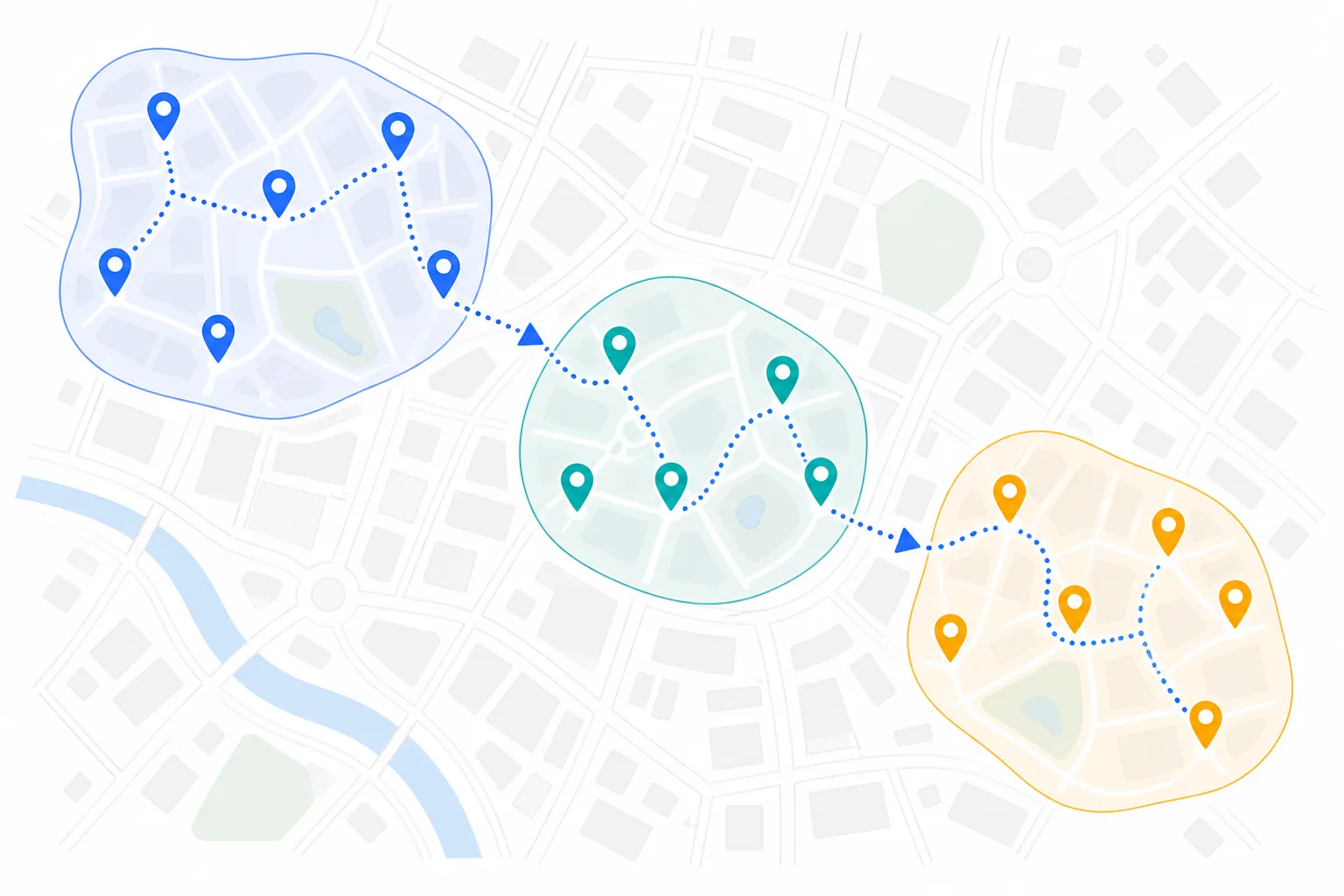
- Tap Build a trip to get them grouped into days with a walking route.
To be clear about what this does: it copies the places into a Triply trip. It does not write anything into Google Maps, and it does not sign in to either Google account. With a free Triply account the trip is kept there, so it stays when the old Google account goes. More on that flow in how to turn Google Maps saved places into an itinerary.
Before you close the old account
- Run Takeout and keep the archive, even if you think you moved everything.
- Check that every list you want is one the new account created, not one it only saved from a link.
- Move starred places into a list and share it; they are the ones people forget.
- Open the new account on a second device and confirm the lists are there.
Frequently asked questions
Can I transfer Google Maps saved places to another Google account?
Not with one button. Google Maps has no transfer or import feature for saved lists. You can share a list from the old account and open it in the new one, re-save the places into a list the new account owns, or export them with Google Takeout as a backup.
Can I import a Takeout CSV into Google Maps saved places?
No. Google Maps cannot import a file into your saved lists. The CSV from Takeout has a Google Maps link for every place, so you can open each link while signed in to the new account and tap Save. Google My Maps can import files, but that creates a custom map, not a saved list.
If I save a shared list in my new account, do I own it?
No. A list you saved from a link still belongs to the account that created it. The new account can view it, and edit it if it was invited as a collaborator, but the list lives in the old account. To own the places, save them into a list the new account created.
How do I move starred places to another account?
Starred places cannot be shared by link. First save them into a normal list in the old account (on Android: You, See all, touch and hold to select several, Save, New list), then share that list with the new account.
Do my saved places follow me if I only change phones?
Yes. Saved places are stored in your Google account, not on the phone. Sign in to the same account on the new phone and the lists are there. A transfer is only needed when you change accounts.