How-to
How to Make a Route from Google Maps Saved Places
November 2026 · 6 min read
Quick answer
Google Maps has no button that turns a saved list into a route. You have two options:
- By hand in Google Maps: start directions to one saved place, then add the others as stops. The limit is 9 stops, you add them one at a time, and Google keeps the order you give it.
- Whole list at once: in Google Maps open the list, tap Share, copy the link and paste it below. You get the places grouped into days, with a walking order for each day.
Works in your browser, no download. Your first list is free, no account needed.
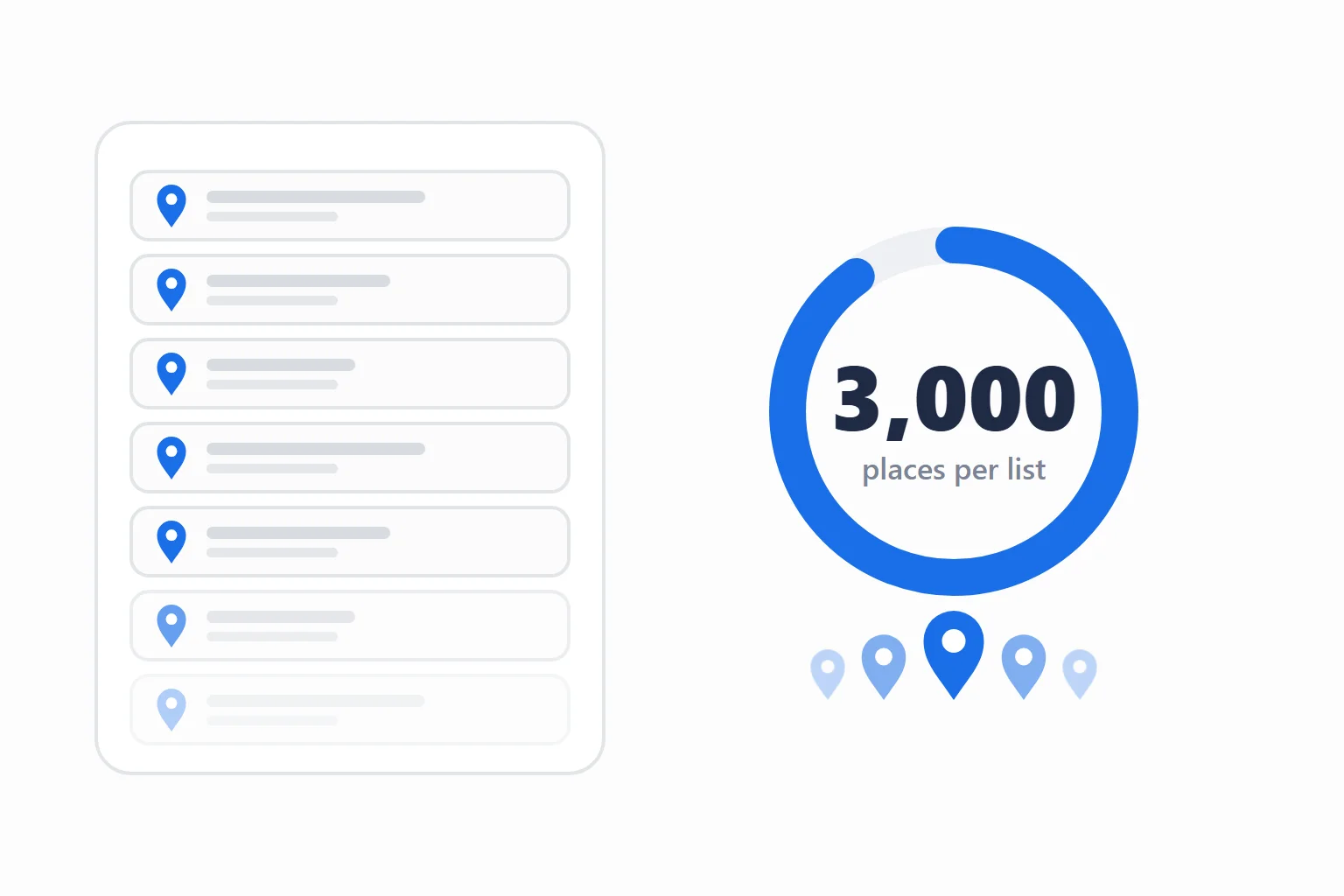
Saving places in Google Maps is easy, and getting directions to one of them is one tap. The gap is in between: you have 25 pins in Rome and want to know in which order to visit them. Google Maps treats a list as a collection, not as a route, so the order is something you have to build yourself. Here is how, and where it stops working.
The manual way: add saved places as stops
On a phone
- Open Google Maps, tap You, open your list and tap the place you want to end at. Tap Directions.
- Tap More (the three dots at the top right), then Edit stops. On some versions it is called Add stop.
- Add a stop and type the name of the next saved place. Saved places come up in the search suggestions, so a few letters are usually enough.
- Repeat for each place. To change the order, touch and hold the handle next to a stop and drag it.
- Tap Done, then Start.
On a computer
- Open Google Maps and click Directions.
- Enter a starting point and the first saved place.
- Click Add destination for each further stop and type the place name.
- Drag the stops into the order you want.
A computer is the easier place to do this, because you can keep the list open in one tab and the directions in another.
Where the manual way stops working
- 9 stops. Google's help page says you can add up to 9 stops, which includes the final destination. Once you reach it you cannot add more. A list of 25 places needs three separate routes.
- No public transit. Routes with several stops work for driving, walking and cycling. They are not available for public transit or flights, which is how most people get around a big city.
- No best order. Google Maps goes through the stops in the order they are listed. It will not tell you that swapping stop 3 and stop 6 saves forty minutes. You find that out by dragging and watching the total time.
- One route, not a trip. There are no days. Nothing splits 25 places into Monday, Tuesday and Wednesday, and nothing keeps the route next to your list for later. You rebuild it each morning.
Google My Maps, a separate Google product for custom maps, can draw directions between points too. It does not read your saved lists either; you add each place by hand or import a file from Google Takeout first.
The whole list at once: paste the share link
A saved list's share link carries the places and your notes. Triply reads that link and does the ordering:
- In Google Maps open the list, tap Share and copy the link. The list has to be shared by link; a private list cannot be read.
- Paste the link into the box above, or on the Google Maps list to itinerary tool.
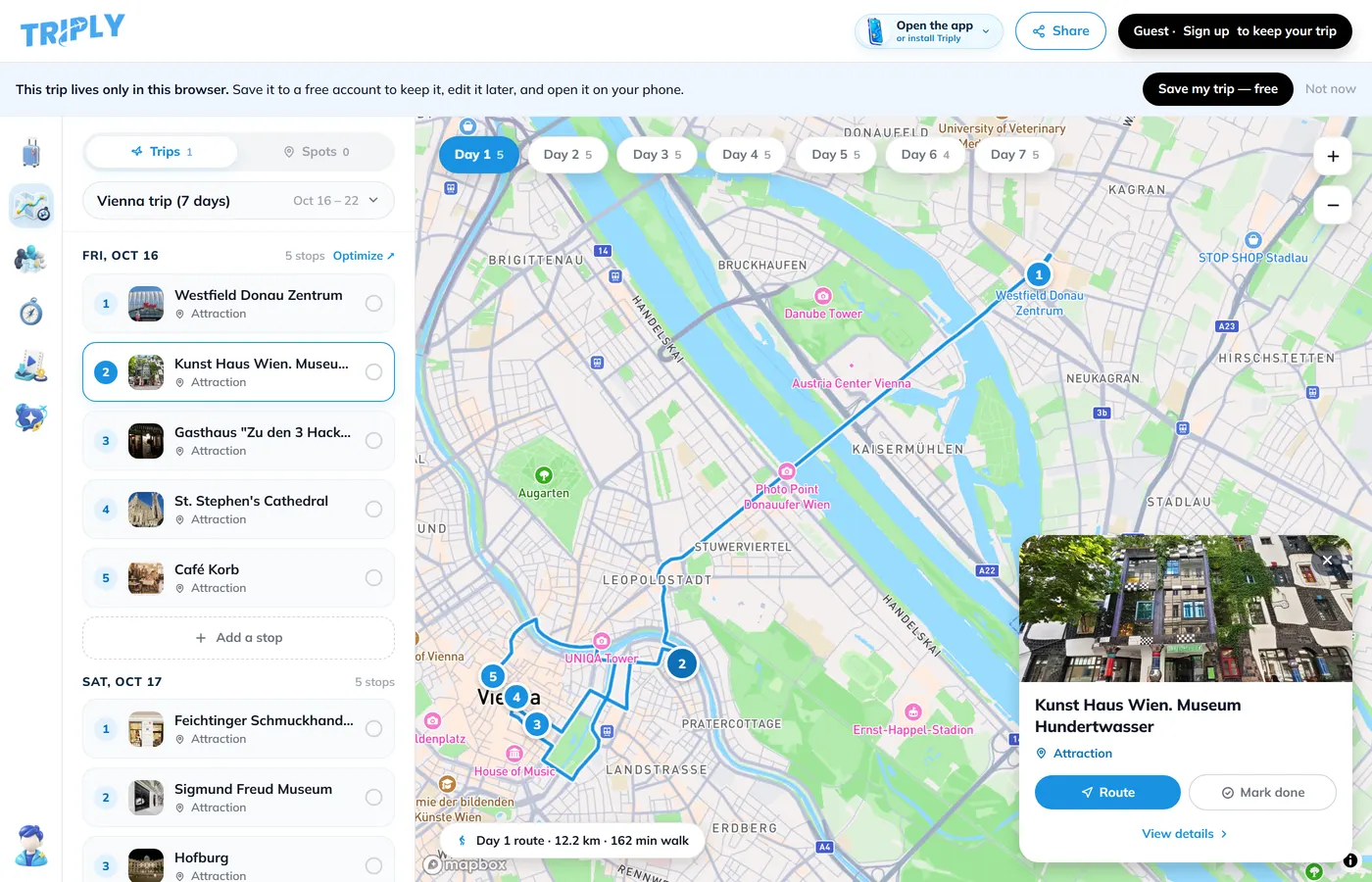
- Triply shows the places it found, each matched to the real place with a photo. Untick the ones you do not want.
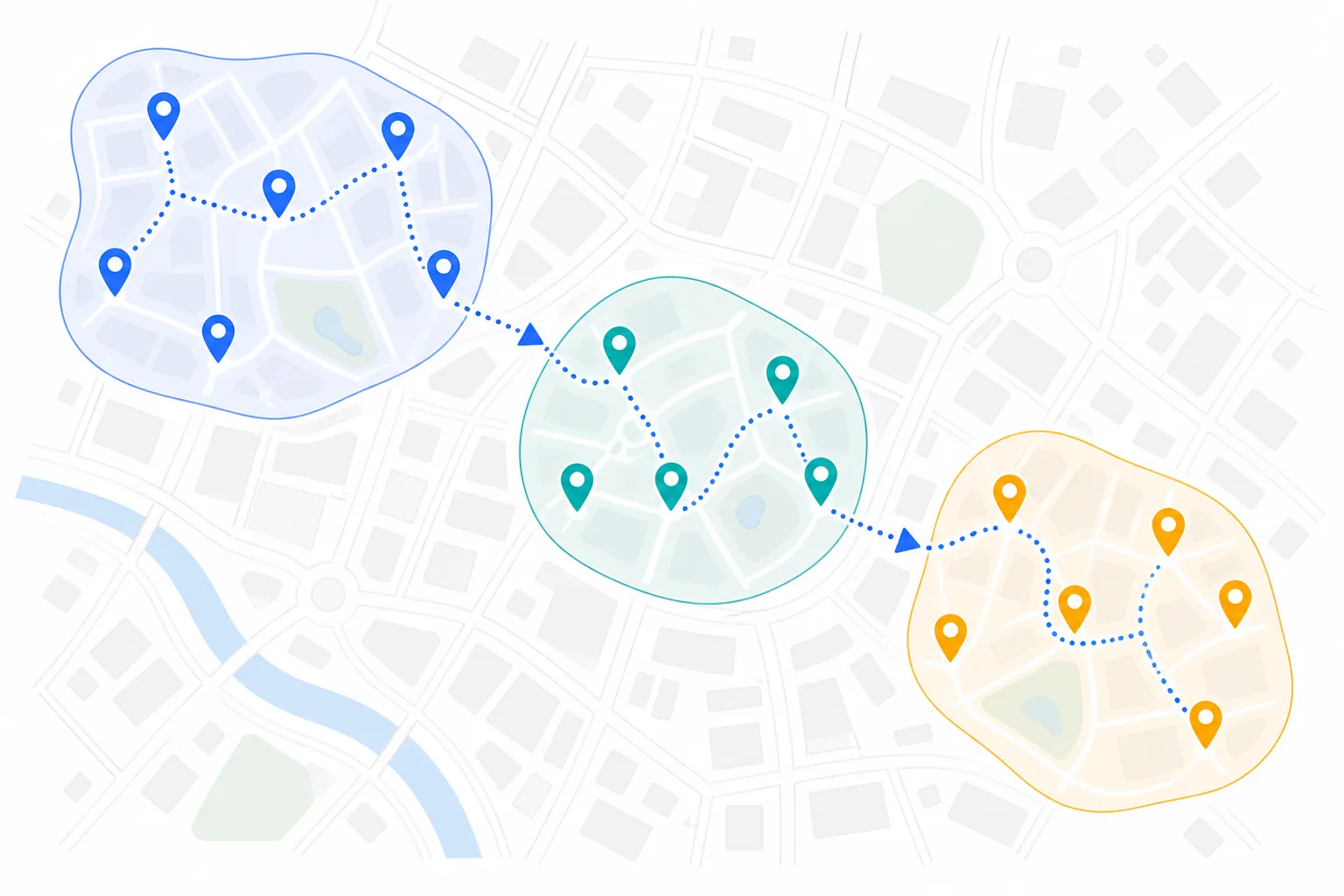
- Tap Build a trip. Places that sit close together land in the same day, and each day gets a visiting order and a walking route on the map.
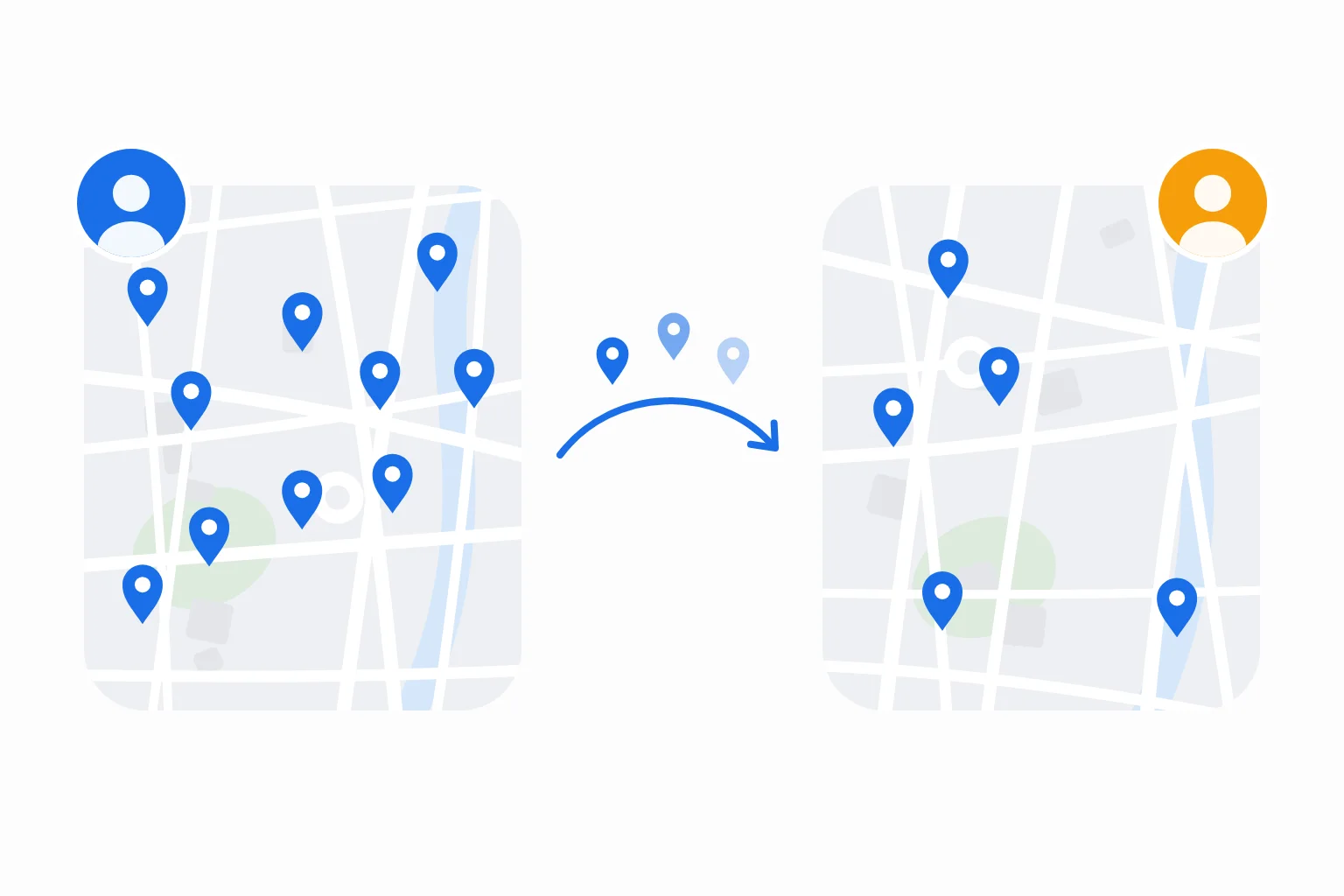
The numbers: up to 60 places are read from one link, and a trip holds up to 35 stops across at most 7 days. You can move a stop to another day or remove it afterwards. When it is time to go, each stop opens in Google Maps for turn-by-turn navigation, so you keep the app you already know for the last step.
What it is not: a delivery route planner. The days are built for sightseeing on foot, where the question is which places belong together. If you need the fastest driving order for 40 addresses, a dedicated multi-stop route planner is the right tool.
Which one to use
- Up to 9 places, one day, driving or walking: the manual way in Google Maps is fine and takes a few minutes.
- A full list for a city trip: paste the link. Sorting 30 places into days by hand is the slow part, and it is the part a planner does well.
- A list that covers several cities: split it by city first, then paste each one. Our guide to the Google Maps list limit shows how to move places between lists.
For the wider picture, including the by-hand and Takeout routes, see how to turn Google Maps saved places into an itinerary. Planning with other people? Share the list with friends first so everyone's places are in before you build the days.
Frequently asked questions
Can Google Maps create a route from a saved list?
No. There is no button that turns a list into a route. You start directions to one place and add the others as stops, one at a time, by searching for each saved place by name.
How many stops can a Google Maps route have?
Up to 9 stops, which includes the final destination, plus your starting point. The limit is the same on Android, iPhone and the web. Multiple stops are not available for public transit or flights.
Does Google Maps put the stops in the best order?
No. The route visits the stops in the order they are listed. You can drag them into a different order, and the travel time updates, but working out the shortest order is up to you.
How do I route more than 9 saved places?
Split them. Either build several routes of up to 9 stops each, or paste the list's share link into a planner such as Triply, which reads up to 60 places and groups them into days of nearby stops with a walking order for each day.
Can I still navigate with Google Maps after planning in Triply?
Yes. Triply is for planning the days and the order. For turn-by-turn navigation to a stop it opens Google Maps.